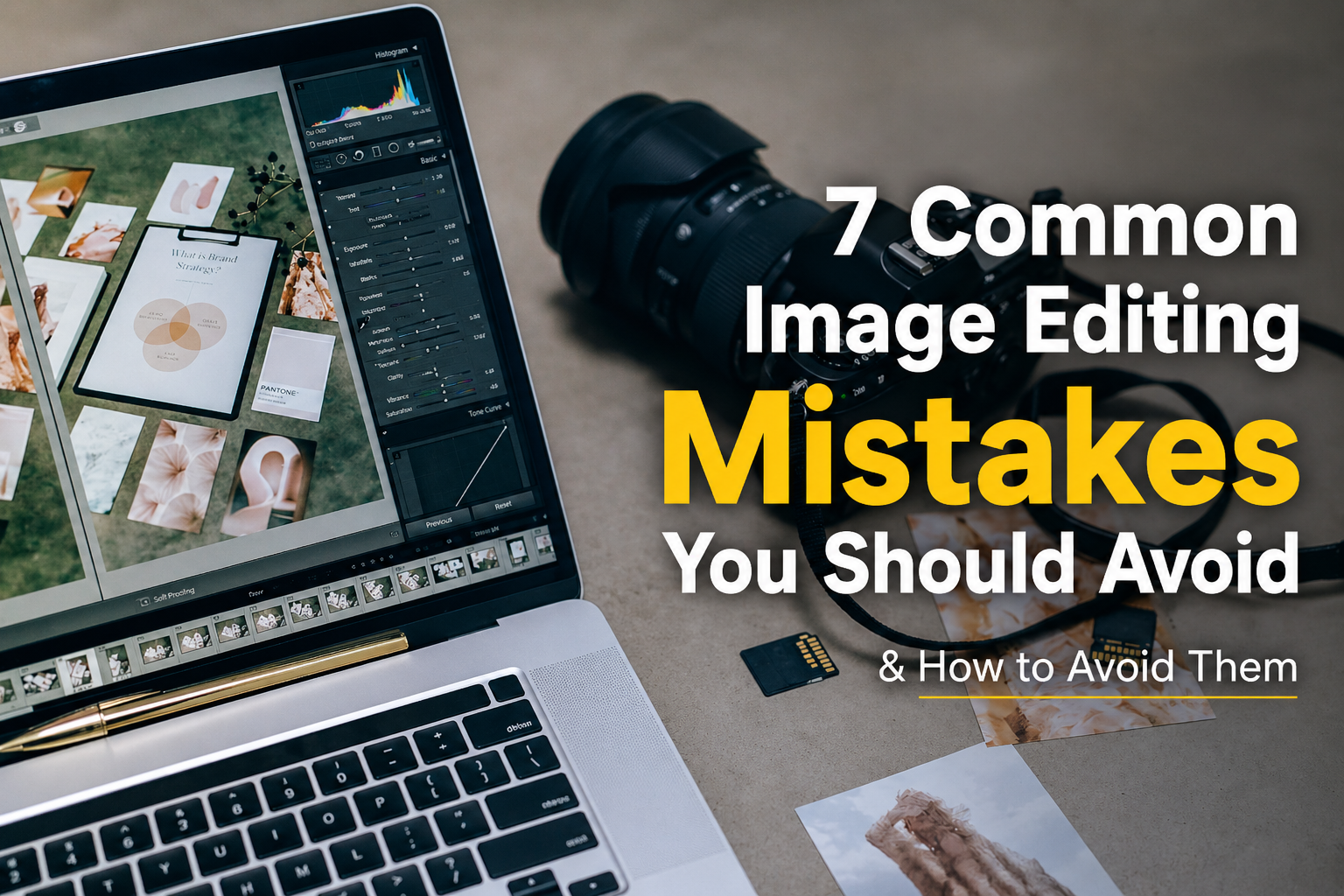
7 Common Image Editing Mistakes You Should Avoid (Step-by-Step Guide) Image editing can transform an ordinary photo into something stunning—but small mistakes can easily ruin the final result. Whether you’re a beginner or a professional, avoiding these common errors will help you create cleaner, more realistic, and high-quality images. Step 1: Over-Editing the Image One of the biggest mistakes is applying too many effects—like excessive sharpening, contrast, or filters. Why it’s a problem: Over-edited images look unnatural and can reduce credibility, especially for eCommerce or professional use. How to fix it: Keep adjustments subtle Zoom in and out while editing Compare before/after versions Step 2: Ignoring Proper Color Balance Incorrect color tones can make your image look unrealistic or unprofessional. Common issues: Too warm (yellow/orange tint) Too cool (blue tint) Oversaturated colors Solution Use white balance tools Adjust temperature and tint carefully Keep skin tones natural Step 3: Poor Background Removal Rough edges or leftover background fragments are a clear sign of bad editing. Why it matters: Clean background removal is crucial for product photos, especially in online stores. Best practice: Zoom in while cutting edges Use feathering and refine edge tools Check edges on different backgrounds Step 4: Incorrect Shadow and Lighting Shadows that don’t match the light source make images look fake. Mistake examples: Missing shadows Shadows in the wrong direction Too dark or too light shadows Fix it like a pro: Match shadow direction with light Adjust opacity and blur Keep it soft and realistic Step 5: Overusing Skin Retouching Too much retouching can make people look plastic or artificial. What to avoid: Blurring skin too much Removing all texture Over-smoothing Better approach: Keep natural skin texture Remove only blemishes, not details Use frequency separation carefully Step 6: Wrong Image Resolution Using low-resolution images can damage your brand image. Problems caused: Blurry images Pixelation Poor user experience Solution: Always work with high-resolution files Export in proper size for web or print Optimize without losing quality Step 7: Not Saving in the Right Format Choosing the wrong file format can affect quality and loading speed. Common mistakes: Using PNG for large photos unnecessarily Saving JPEG with too much compression Recommended formats: JPEG: For web images and photos PNG: For transparent backgrounds WebP: For faster loading and better SEO Final Thoughts Avoiding these simple but common image editing mistakes can significantly improve your results. Clean, natural, and well-optimized images not only look professional but also help increase user trust and website traffic.If you’re working on eCommerce or professional visuals, consistency and quality should always be your priority.